
Payment Links
Charge with no integration: create a payment link, brand it, and share it.
Payment Links are unique URLs generated by Tonder to collect payments with no integration: you share them and your customer pays. This section lists all your links and lets you create them, customize the checkout (branding), and track them.
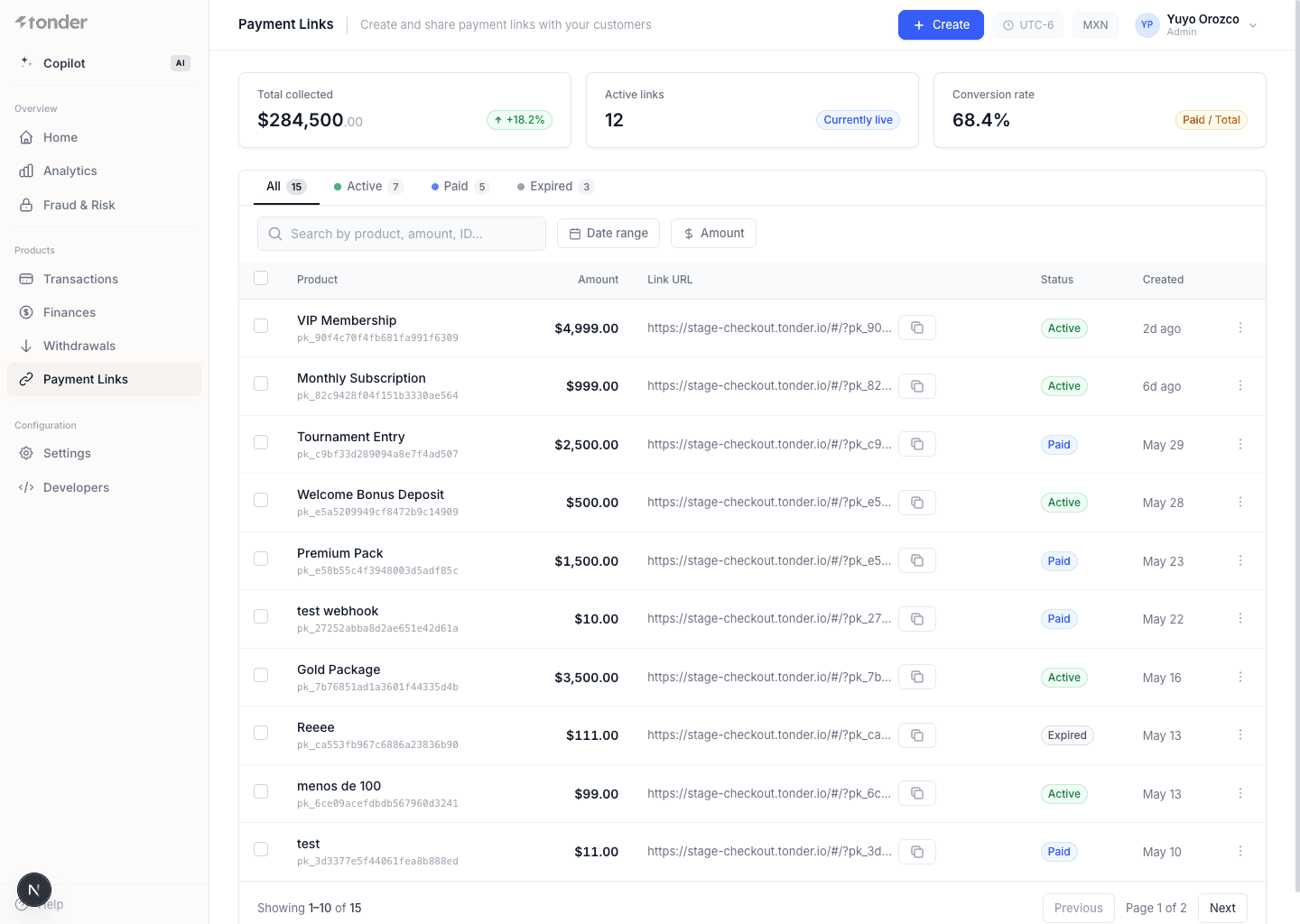
The list
Shows all your generated links:
| Field | Description |
|---|---|
| Product | Name or identifier of the payment link. |
| Amount | Monetary value of the link. |
| Link URL | The unique URL to access and pay. |
| Status | Current status (Active, Inactive). |
| Created | Creation date. |
Create a payment link
Click +Create in the top-right corner.
| Field | Required? | Description |
|---|---|---|
| Product | Yes | Product name or identifier. |
| Description | Yes | Details about the product or link. |
| Amount | Yes | Monetary value. |
| Currency | Yes | Currency. |
| Quantity | Yes | Number of product units. |
| Redirection URL | No | Redirect URL after payment. |
| Expiry Date | No | Link expiration date. |
| Payment Methods | No | Methods accepted beyond cards. |
Click Create new link.
On each link's details page you can copy or open its URL and edit the Redirection URL and the Expiry Date.
Lifecycle
When created, a payment link is always Active, and changes to Paid or Expired depending on the customer's actions or the expiration settings.
| Status | Description |
|---|---|
| Active | The link is available and can be used to pay. |
| Paid | The payment was completed successfully; the link can no longer be used. |
| Expired | The link is no longer valid after reaching its expiration. |
Branding
Customize the checkout experience with your logo and colors from the Branding page (button in the top-right corner of the Payment Links section):
| Field | Description |
|---|---|
| Company Logo | The company or brand logo. |
| Checkout Color | Background color of the checkout button. |
| Background Color | Background color of the order details. |
| Text in Checkout Color | Text color in the checkout button. |
| Text in Orders Details | Text color in the order details. |