> ## Documentation Index
> Fetch the complete documentation index at: https://docs.tonder.io/llms.txt
> Use this file to discover all available pages before exploring further.

# Ionic SDK Full

The Tonder Ionic SDK Full is a solution for integrating our system into your mobile application. This solution ensures PCI DSS (Payment Card Industry Data Security Standard) by securely collecting and tokenizing sensitive data in the browser, without exposing your front-end infrastructure to any sensitive data.

This guide will walk you through all the steps, from installation and configuring our SDK to fit your application.

## Installation

Tonder's Ionic SDK can be installed using our npm package. To do so, use the following command:

```curl theme={null}
  npm i @tonder.io/ionic-full-sdk
```

## Requirements

To configure our SDK you need to add the following script tags to your HTML:

```html theme={null}
  <script src="https://openpay.s3.amazonaws.com/openpay.v1.min.js"></script>
  <script src="https://openpay.s3.amazonaws.com/openpay-data.v1.min.js"></script>
```

The code above is necessary to ensure a reliable connection to the payment processor.

<Note>You can also install each one with their respective npm packages</Note>

## Configuration

With Tonder's SDK installed, and requirements met, you are ready to configure and use the SDK. The following step-by-step process takes you through everything, from starting a new instance, to performing a new transaction using the needed methods:

<Steps>
  <Step title="Mobile settings">
    Follow the instructions below to configure your mobile application for Android and iOS devices.

    <Tabs>
      <Tab title="Android">
        To deploy your app on Android, you must add the Internet permission to your `AndroidManifest.xml` file. Add the following code to your XML:

        ```xml theme={null}
          <!-- Required to fetch data from the internet. -->
          <uses-permission android:name="android.permission.INTERNET" />
        ```
      </Tab>

      <Tab title="iOS">
        To enable iOS deployment, add the network client entitlement to `macos/Runner/DebugProfile.entitlements` and `macos/Runner/Release.entitlements` files by including the code below:

        ```xml theme={null}
          <!-- Required to fetch data from the internet. -->
          <key>com.apple.security.network.client</key>
          <true/>
        ```
      </Tab>
    </Tabs>
  </Step>

  <Step title="Add the required ID to your HTML">
    Tonder's Ionic SDK Full requires a `tonder-checkout` ID to work, which needs to be added to an empty div as shown below:

    ```html theme={null}
    <div>
        <h1>Checkout</h1>
        <!-- You have to add an entry point with the ID 'tonder-checkout' -->
        <div id="tonder-checkout">
        </div>
    </div>
    ```
  </Step>

  <Step title="Initialize Tonder's SDK Instance">
    Initialize Tonder's Ionic SDK Full instance:

    ```javascript theme={null}
    import { InlineCheckout } from "@tonder.io/ionic-full-sdk";

    const apiKey = "You can find this in your Tonder Dashboard";
    const returnUrl = "http://my-website:8080/checkout-success";

    const inlineCheckout = new InlineCheckout({
      apiKey,
      returnUrl,
    });
    ```

    <Tip>
      The `InlineCheckout` object includes all the functionalities of LiteCheckout and adds the capability to handle the rendering of the card payment form. InlineCheckout not only manages transactions but also facilitates the visual integration of the payment form in your application, providing a complete payment experience.
    </Tip>

    Below is a table of all parameters available, including the required ones for initialization:

    <table>
      <thead>
        <tr>
          <th>Property</th>
          <th>Type</th>
          <th>Required</th>
          <th>Description</th>
        </tr>
      </thead>

      <tbody>
        <tr>
          <td>`mode`</td>
          <td>string</td>
          <td>➖</td>
          <td>Environment mode. Options: `stage`, `production`, `sandbox`. Default: `stage`</td>
        </tr>

        <tr>
          <td>`apiKey`</td>
          <td>string</td>
          <td>✔️</td>
          <td>The API key used for authentication and authorization.</td>
        </tr>

        <tr>
          <td>`returnUrl`</td>
          <td>string</td>
          <td>✔️</td>
          <td>The URL to which the user is redirected after the checkout process, regardless of success or failure.</td>
        </tr>

        <tr>
          <td>`renderPaymentButton`</td>
          <td>boolean</td>
          <td>➖</td>
          <td>Use this flag if you need render Tonder's default payment button. Default: `false`</td>
        </tr>

        <tr>
          <td>`style`</td>
          <td>object</td>
          <td>➖</td>
          <td>The [custom styles object](#styles) to customize the checkout</td>
        </tr>

        <tr>
          <td>`containerId`</td>
          <td>string</td>
          <td>➖</td>
          <td>If a custom checkout container ID is required. Default value: `tonder-checkout`.</td>
        </tr>

        <tr>
          <td>`collectorIds`</td>
          <td>object</td>
          <td>➖</td>

          <td>
            If you require custom `div` container IDs.<br />Default value:

            ```js theme={null}
            {
              cardsListContainer: “cardsListContainer”,
              holderName: “collectCardholderName”,
              cardNumber: “collectCardNumber”,
              expirationMonth: “collectExpirationMonth”,
              expirationYear: “collectExpirationYear”,
              cvv: “collectCvv”,
              tonderPayButton: “tonderPayButton”,
              msgError: “msgError”,
              msgNotification: “msgNotification”
            }
            ```
          </td>
        </tr>

        <tr>
          <td>`callBack`</td>
          <td>function</td>
          <td>➖</td>
          <td>Callback function to be invoked after the payment process ends successfully.</td>
        </tr>

        <tr>
          <td>`isOpenpaySandbox`</td>
          <td>boolean</td>
          <td>➖</td>
          <td>Defines if Openpay works on the sandbox. Default value: `true`.</td>
        </tr>

        <tr>
          <td>`isEnrollmentCard`</td>
          <td>boolean</td>
          <td>➖</td>
          <td>Use the SDK as an enrollment card.</td>
        </tr>

        <tr>
          <td>`customization`</td>
          <td>object</td>
          <td>➖</td>

          <td>
            Object to customize the checkout behavior and UI. Default value:<br />

            ```js theme={null}
            {
              saveCards: {
                showSaved: true,
                showSaveCardOption: true,
                autoSave: false
              }
            }
            ```
          </td>
        </tr>
      </tbody>
    </table>
  </Step>

  <Step title="Inject checkout method">
    Call the `injectCheckout` method with your inlineCheckout instance, with the code below:

    ```javascript theme={null}
    inlineCheckout.injectCheckout();
    ```

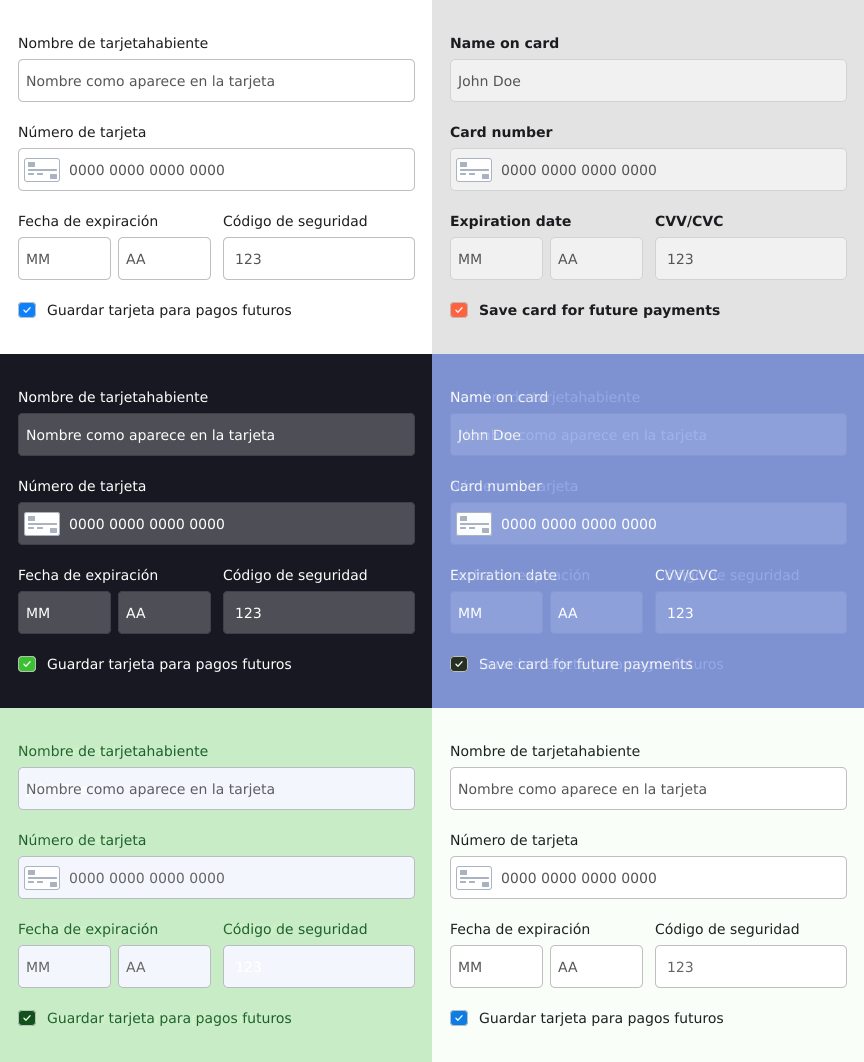
    This method will use the element with id `tonder-checkout` added in Step 2 to render the checkout elements, as exemplified by the image below:

    <Frame>
      <img src="https://mintcdn.com/tonder/IhvFidpbiWxMXyB_/images/SDKs/checkout-gif.gif?s=cee6b4a754eaa65ca524de7807d97038" alt="" width="432" height="354" data-path="images/SDKs/checkout-gif.gif" />
    </Frame>

    With this, you can render the checkout to your customers.
  </Step>
</Steps>

## Class Methods

After properly configuring your Full SDK instance, you have at your hand various methods to work with Tonder. Below you will find a detailed information about the checkout data needed with an example, and all the available methods in the SDK.

<CardGroup cols={4}>
  <Card title="Configure Checkout" href="#configure-checkout" />

  <Card title="Inject Checkout" href="#inject-checkout" />

  <Card title="Payment" href="#payment" />

  <Card title="3DS Verification" href="#3ds-verification" />

  <Card title="Save Card" href="#save-card" />

  <Card title="Remove Checkout" href="#remove-checkout" />

  <Card title="Set Payment Data" href="#set-payment-data" />
</CardGroup>

### Configure Checkout

You can use the `configureCheckout` method to set initial customer information, such as their email address, allowing to retrieve the respectives user's saved cards.

```js theme={null}
  inlineCheckout.configureCheckout(data);
```

### Inject Checkout

The `injectCheckout` method is a function that allows you to incorporate Tonder's Checkout feature into your application. This function leverages the element with the ID `tonder-checkout` that was added in Step 1 to display the checkout components on your page. To use this method, use the following code:

```javascript theme={null}
inlineCheckout.injectCheckout();
```

### Payment

To create a new payment with the Lite SDK, use the `payment` method. This method requires an object as parameter with the following data:

| Key                 | Description                                         |
| ------------------- | --------------------------------------------------- |
| **customer**        | An object containing customer information           |
| **cart**            | An object containing cart and item details          |
| **currency**        | The currency code for the transaction (e.g., "MXN") |
| **metadata**        | An object for additional metadata (e.g., order ID)  |
| **card**            | An object containing card details for a new card    |
| **payment\_method** | The selected payment method (optional)              |

<AccordionGroup>
  <Accordion title="customer">
    | Key           | Description                |
    | ------------- | -------------------------- |
    | **firstName** | Customer's first name      |
    | **lastName**  | Customer's last name       |
    | **country**   | Customer's country         |
    | **address**   | Customer's street address  |
    | **city**      | Customer's city            |
    | **state**     | Customer's state or region |
    | **postCode**  | Customer's postal code     |
    | **email**     | Customer's email address   |
    | **phone**     | Customer's phone number    |
  </Accordion>

  <Accordion title="cart">
    | Key       | Description               |
    | --------- | ------------------------- |
    | **total** | Total amount for the cart |
    | **items** | An array of item objects  |

    **Item Object Structure**:

    | Key                    | Description                                              |
    | ---------------------- | -------------------------------------------------------- |
    | **description**        | Description of the product                               |
    | **quantity**           | Quantity of the product                                  |
    | **price\_unit**        | Unit price of the product                                |
    | **discount**           | Discount applied to the product                          |
    | **taxes**              | Taxes applied to the product                             |
    | **product\_reference** | Reference code for the product                           |
    | **name**               | Name of the product                                      |
    | **amount\_total**      | Total amount for this product (after discount and taxes) |
  </Accordion>

  <Accordion title="card">
    | Key                   | Description                                     |
    | --------------------- | ----------------------------------------------- |
    | **card\_number**      | The credit card number without spaces or dashes |
    | **cvv**               | Card Verification Value (3 or 4-digit code)     |
    | **expiration\_month** | Card's expiration month (e.g., "12")            |
    | **expiration\_year**  | Card's expiration year (e.g., "25")             |
    | **cardholder\_name**  | Name on the credit card                         |

    *Alternatively, if using a saved card, replace the `card` object with the saved card's identifier:*

    ```javascript theme={null}
    card: "skyflow_id" // for a selected saved card.
    ```
  </Accordion>

  <Accordion title="payment_method">
    Specify this key if using a different payment method instead of a card.

    | Key                 | Description                                |
    | ------------------- | ------------------------------------------ |
    | **payment\_method** | The selected payment method (e.g., "Spei") |
  </Accordion>

  <Accordion title="metadata">
    | Key           | Description                     |
    | ------------- | ------------------------------- |
    | **order\_id** | Unique identifier for the order |
  </Accordion>
</AccordionGroup>

With the required parameter in hand, call the method as presented below:

```js theme={null}
  const paymentData = {
    customer: {
      firstName: "John",
      lastName: "Doe",
      country: "USA",
      address: "123 Main St",
      city: "Anytown",
      state: "CA",
      postCode: "12345",
      email: "john.doe@example.com",
      phone: "1234567890",
    },
    cart: {
      total: "100.00",
      items: [
        {
          description: "Product description",
          quantity: 1,
          price_unit: "100.00",
          discount: "0.00",
          taxes: "0.00",
          product_reference: "PROD123",
          name: "Product Name",
          amount_total: "100.00",
        },
      ],
    },
    currency: "MXN",
    metadata: {
      order_id: "ORDER123",
    },
    // For a new card:
    card: {
      card_number: "4111111111111111",
      cvv: "123",
      expiration_month: "12",
      expiration_year: "25",
      cardholder_name: "John Doe",
    },
    // card: "skyflow_id" // for a selected saved card.
    // payment_method: "Spei", // For the selected payment method.
  };

  const responsePayment = await inlineCheckout.payment(paymentData);
```

<Accordion title="Create Payment response">
  The response to this method will be the following:

  ```ts theme={null}
    {
      pk: number,
      order?: string,
      amount: string,
      status: string,
      date: string,
      paid_date?: string,
      shipping_address: {
        street: string,
        number: string,
        suburb: string,
        city: {
          name: string
        },
        state: {
          name: string,
          country: {
              name: string
          }
        },
        zip_code: string
      },
      shipping_address_id?: string,
      billing_address: {
        street: string,
        number: string,
        suburb: string,
        city: {
          name: string
        },
        state: {
          name: string,
          country: {
            name: string
          }
        },
        zip_code: string
      },
      billing_address_id?: string,
      client?: string,
      customer_order_reference?: string
    }
  ```
</Accordion>

### 3DS Verification

You can use the `verify3dsTransaction()` method to validate if a 3DS challenge was successful or not. Use the example below to call the method and handle the response as needed:

```js theme={null}
  inlineCheckout.verify3dsTransaction().then(response => {
    console.log('Verify 3ds response', response);
    
    if (response.transaction_status === 'Success') {
      alert('3DS Transaction verified.');
      // Proceed with normal payment flow
    } else if (response.transaction_status === 'Failed') {
      alert('3DS Transaction Failed');
    }
  });
```

### Save Card

You can use this method when using the SDK instance as an enrollment card feature with `isEnrollmentCard`.

```javascript theme={null}
inlineCheckout.saveCard();
```

### Remove Checkout

Removes the checkout from the DOM and cleans up associated resources.

```javascript theme={null}
inlineCheckout.removeCheckout();
```

### Set Payment Data

The `setPaymentData` method requires a checkoutData object as a parameter to pass checkout data to Tonder. This is useful when using the default Tonder payment button `renderPaymentButton`. Use the code example below to call it:

```js theme={null}
  inlineCheckout.setPaymentData(checkoutData);
```

#### Checkout Data

The payment function payload needs to be an object with detailed information about the customer, currency and cart. Below you find details abou each needed field:

<AccordionGroup>
  <Accordion title="Customer">
    | Field       | Description                                            |
    | ----------- | ------------------------------------------------------ |
    | `firstName` | The first name of the customer.                        |
    | `lastName`  | The last name of the customer.                         |
    | `country`   | The customer's country of residence.                   |
    | `address`   | The customer's street address.                         |
    | `city`      | The city of residence of the customer.                 |
    | `state`     | The state or region within the country.                |
    | `postCode`  | The postal code or ZIP code of the customer's address. |
    | `email`     | The email address for communication with the customer. |
    | `phone`     | The contact phone number of the customer.              |
  </Accordion>

  <Accordion title="Currency">
    | Field      | Description                        |
    | ---------- | ---------------------------------- |
    | `currency` | The currency used by the customer. |
  </Accordion>

  <Accordion title="Cart">
    | Field                        | Description                                                      |
    | ---------------------------- | ---------------------------------------------------------------- |
    | `total`                      | The total amount for the customer's purchase.                    |
    | `items`                      | An array containing details of individual items in the purchase. |
    | `items[n].description`       | The description of the item.                                     |
    | `items[n].quantity`          | The quantity of the item in the purchase.                        |
    | `items[n].price_unit`        | The unit price of the item.                                      |
    | `items[n].discount`          | The discount applied to the item.                                |
    | `items[n].taxes`             | The taxes applied to the item.                                   |
    | `items[n].product_reference` | The reference number of the product for the item.                |
    | `items[n].name`              | The name of the item (e.g., "T-Shirt").                          |
    | `items[n].amount_total`      | The total amount for the item.                                   |
  </Accordion>
</AccordionGroup>

#### Checkout Data Example

Below you find an example of a checkout data object:

<Accordion title="checkoutData example">
  ```javascript theme={null}
    const checkoutData = {
      customer: {
        firstName: "Juan",
        lastName: "Hernández",
        country: "Mexico",
        address: "Av. Revolución 356, Col. Roma",
        city: "Monterrey",
        state: "Nuevo León",
        postCode: "64700",
        email: "juan.hernandez@mail.com",
        phone: "8187654321",
      },
      currency: 'mxn',
      cart: {
        total: 399,
        items: [
          {
            description: "Black T-Shirt",
            quantity: 1,
            price_unit: 1,
            discount: 0,
            taxes: 0,
            product_reference: 1,
            name: "T-Shirt",
            amount_total: 399,
          },
        ]
      }
    };
  ```
</Accordion>

## Styles

You can customize your checkout in two ways using Ionic SDK Full. You can either include a style parameter when creating the `InlineCheckout` instance or use HTML and CSS.

<Frame>
  <img src="https://mintcdn.com/tonder/IhvFidpbiWxMXyB_/images/SDKs/checkout-gif.gif?s=cee6b4a754eaa65ca524de7807d97038" alt="" width="432" height="354" data-path="images/SDKs/checkout-gif.gif" />
</Frame>

Below you will find more details about both options:

### Include a Style Parameter

To include the checkout styles, add an object with the desired styles to the `styles` parameter when creating the instance, like presented below:

```js theme={null}
  const inlineCheckout = new InlineCheckout({
    apiKey,
    returnUrl,
    styles: customStyles
  });
```

All available customizations are presented in the example below:

<Accordion title="customStyles example">
  ```js theme={null}
    const customStyles = {
      inputStyles: {
        base: {
          border: "1px solid #e0e0e0",
          padding: "10px 7px",
          borderRadius: "5px",
          color: "#1d1d1d",
          marginTop: "2px",
          backgroundColor: "white",
          fontFamily: '"Inter", sans-serif',
          fontSize: '16px',
          '&::placeholder': {
            color: "#ccc",
          },
        },
        cardIcon: {
          position: 'absolute',
          left: '6px',
          bottom: 'calc(50% - 12px)',
        },
        complete: {
          color: "#4caf50",
        },
        empty: {},
        focus: {},
        invalid: {
          border: "1px solid #f44336",
        },
        global: {
          '@import': 'url("https://fonts.googleapis.com/css2?family=Inter:wght@300;400;500;700&display=swap")',
        }
      },
      labelStyles: {
        base: {
          fontSize: '12px',
          fontWeight: '500',
          fontFamily: '"Inter", sans-serif'
        },
      },
      errorTextStyles: {
        base: {
          fontSize: '12px',
          fontWeight: '500',
          color: "#f44336",
          fontFamily: '"Inter", sans-serif'
        },
      },
      labels: {
        cardLabel: 'Número de Tarjeta Personalizado',
        cvvLabel: 'Código de Seguridad',
        expiryMonthLabel: 'Mes de Expiración',
        expiryYearLabel: 'Año de Expiración'
      },
      placeholders: {
        cardPlaceholder: '0000 0000 0000 0000',
        cvvPlaceholder: '123',
        expiryMonthPlaceholder: 'MM',
        expiryYearPlaceholder: 'AA'
      }
    }
  ```
</Accordion>

### HTML and CSS

To customize your checkout using HTML and CSS, you can use predefined classes in your HTML and customize them in the CSS.

The styles parameter is related to the style of the inputs inside the checkout form. To customize the checkout container and the cards list, you can use the global styles and classes presented below:

<Accordion title="CSS">
  ```css theme={null}
    @import url("https://fonts.googleapis.com/css2?family=Inter:wght@300;400;500;700&display=swap");

    .container-tonder {
      background-color: #F9F9F9;
      margin: 0 auto;
      padding: 30px 10px 30px 10px;
      overflow: hidden;
      transition: max-height 0.5s ease-out;
      max-width: 600px;
      border: solid 1px #e3e3e3;
    }

    .collect-row {
      display: flex;
      justify-content: space-between;
      width: 100%;
    }

    .collect-row > :first-child {
      min-width: 120px;
    }

    .expiration-year {
      padding-top: 25px;
    }

    .empty-div {
      height: 80px;
      margin-top: 2px;
      margin-bottom: 4px;
      margin-left: 10px;
      margin-right: 10px;
    }

    .error-container{
      color: red;
      background-color: #FFDBDB;
      margin-bottom: 13px;
      font-size: 80%;
      padding: 8px 10px;
      border-radius: 10px;
      text-align: left;
    }

    .message-container{
      color: green;
      background-color: #90EE90;
      margin-bottom: 13px;
      font-size: 80%;
      padding: 8px 10px;
      border-radius: 10px;
      text-align: left;
    }

    .pay-button {
      font-size: 16px;
      font-weight: bold;
      min-height: 2.3rem;
      border-radius: 0.5rem;
      cursor: pointer;
      width: 100%;
      padding: 1rem;
      text-align: center;
      border: none;
      background-color: #000;
      color: #fff;
      margin-bottom: 10px;
      display: none;
    }

    .pay-button:disabled, pay-button[disabled] {
      background-color: #B9B9B9;
    }

    .lds-dual-ring {
      display: inline-block;
      width: 14px;
      height: 14px;
    };

    .lds-dual-ring:after {
      content: " ";
      display: block;
      width: 14px;
      height: 14px;
      border-radius: 50%;
      border: 6px solid #fff;
      border-color: #fff transparent #fff transparent;
      animation: lds-dual-ring 1.2s linear infinite;
    }

    @keyframes lds-dual-ring {
      0% {
        transform: rotate(0deg);
      }
      100% {
        transform: rotate(360deg);
      }
    }

    @media screen and (max-width: 600px) {
      .payment_method_zplit {
        font-size: 16px;
        width: 100%;
      }

      .payment_method_zplit  label img {
        display: none;
      }
    }

    .cards-list-container {
      display: flex;
      flex-direction: column;
      padding: 0px 10px 0px 10px;
      gap: 33% 20px;
    }

    .checkbox label {
      margin-left: 10px;
      font-size: '12px';
      font-weight: '500';
      color: #1D1D1D;
      font-family: "Inter", sans-serif;
    }

    .checkbox {
      margin-top: 10px;
      margin-bottom: 10px;
      width: 100%;
      text-align: left;
    }

    .pay-new-card {
      display: flex;
      justify-content: start;
      align-items: center;
      color: #1D1D1D;
      gap: 33% 20px;
      margin-top: 10px;
      margin-bottom: 10px;
      padding-left: 10px;
      padding-right: 10px;
      width: 90%;
    }

    .pay-new-card .card-number {
      font-size: 16px;
      font-family: "Inter", sans-serif;
    }

    .card-image {
      width: 27px;
      height: 20px;
      text-align: left;
    }

    .card-item-label {
      display: flex;
      justify-content: start;
      align-items: center;
      color: #1D1D1D;
      gap: 33% 20px;
      margin-top: 10px;
      margin-bottom: 10px;
      padding-left: 10px;
      padding-right: 10px;
      width: 90%;
    }

    .card_selected {
      width: 10%;
    }

    .card-item {
      display: flex;
      justify-content: start;
      align-items: center;
      gap: 33% 20px;
    }

    .card-item .card-number {
      font-size: 16px;
      font-family: "Inter", sans-serif;
    }

    .card-item .card-expiration {
      font-size: 16px;
      font-family: "Inter", sans-serif;
    }
  ```
</Accordion>

The classes presented above are included as example in the HTMLs presented below:

<AccordionGroup>
  <Accordion title="Form">
    ```html theme={null}
      <div class="container-tonder">
        <div class="cards-list-container"></div>
        <div class="pay-new-card">
          <input checked id="new" name="card_selected" type="radio"/>
          <label for="new">
            <img class="card-image"/>
            <div class="card-number"></div>
          </label>
        </div>
        <div class="container-form">
          <div class="empty-div"></div>
          <div class="empty-div"></div>
          <div class="collect-row">
            <div class="empty-div"></div>
            <div class="expiration-year"></div>
            <div class="empty-div"></div>
          </div>
          <div class="checkbox">
            <input id="save-checkout-card" type="checkbox">
            <label for="save-checkout-card"></label>
          </div>
          <div></div>
          <div></div>
        </div>
        <button class="pay-button"></button>
      </div>
    ```
  </Accordion>

  <Accordion title="Cards list">
    ```html theme={null}
      <div class="card-item">
        <input name="card_selected" type="radio"/>
        <label class="card-item-label">
          <img class="card-image"/>
          <div class="card-number"></div>
          <div class="card-expiration"></div>
        </label>
      </div>
    ```
  </Accordion>
</AccordionGroup>

## Full Integration Example

Below you find full example codes to integrate the Ionic SDK Full:

<AccordionGroup>
  <Accordion title="Ionic Angular - Checkout">
    For Angular, we recommend using a service to manage the Tonder instance:

    ```js theme={null}
    // tonder.service.ts
    import { Injectable } from "@angular/core";
    import { InlineCheckout } from "@tonder.io/ionic-full-sdk";
    import {IInlineCheckout} from "@tonder.io/ionic-full-sdk/dist/types/inlineCheckout";

    @Injectable({
      providedIn: "root",
    })
    export class TonderService {
      private inlineCheckout: IInlineCheckout;

      constructor(@Inject(Object) private sdkParameters: IInlineCheckoutOptions) {
        this.initializeInlineCheckout();
      }

      private initializeInlineCheckout(): void {
        this.inlineCheckout = new InlineCheckout({ ...this.sdkParameters });
      }

      configureCheckout(customerData: IConfigureCheckout): void {
        return this.inlineCheckout.configureCheckout({ ...customerData });
      }

      async injectCheckout(): Promise<void> {
        return await this.inlineCheckout.injectCheckout();
      }

      verify3dsTransaction(): Promise<ITransaction | IStartCheckoutResponse | void> {
        return this.inlineCheckout.verify3dsTransaction();
      }

      payment(
          checkoutData: IProcessPaymentRequest
      ): Promise<IStartCheckoutResponse> {
          return this.inlineCheckout.payment(checkoutData);
      }
      
      removeCheckout(): void {
          return this.inlineCheckout.removeCheckout();
      }
    }
    ```

    Checkout component:

    ```js theme={null}
    // checkout.component.ts
    import { Component, OnInit, OnDestroy } from "@angular/core";
    import { TonderService } from "./tonder.service";

    @Component({
      selector: "app-tonder-checkout",
      template: `
        <div id="tonder-checkout"></div>
        <button (click)="pay()" [disabled]="loading">
          {{ loading ? "Processing..." : "Pay" }}
        </button>
      `,
      providers: [
        {
          provide: TonderInlineService,
            // Initialization of the Tonder Inline SDK.
            // Note: Replace these credentials with your own in development/production.
          useFactory: () =>
            new TonderInlineService({
              apiKey: "11e3d3c3e95e0eaabbcae61ebad34ee5f93c3d27",
              returnUrl: "http://localhost:8100/tabs/tab1",
              mode: "stage",
            }),
        },
      ],
    })

    export class TonderCheckoutComponent implements OnInit, OnDestroy {
      loading = false;
      checkoutData: IProcessPaymentRequest;

      constructor(private tonderService: TonderService) {
          this.checkoutData = {
              customer: {
                  firstName: "Jhon",
                  lastName: "Doe",
                  email: "john.c.calhoun@examplepetstore.com",
                  phone: "+58452258525"
              },
              cart: {
                  total: 25,
                  items: [
                      {
                          description: "Test product description",
                          quantity: 1,
                          price_unit: 25,
                          discount: 1,
                          taxes: 12,
                          product_reference: 89456123,
                          name: "Test product",
                          amount_total: 25
                      }
                  ]
              },
              metadata: {},
              currency: "MXN"
          }
      }

      ngOnInit() {
        this.initCheckout();
      }

      ngOnDestroy() {
        // Clear the checkout upon destroying the component.
        this.tonderService.removeCheckout();
      }

      async initCheckout() {
        this.tonderService.configureCheckout({
          customer: { email: "example@email.com" },
        });
        await this.tonderService.injectCheckout();
        this.tonderService.verify3dsTransaction().then((response) => {
          console.log("Verify 3ds response", response);
        });
      }

      async pay() {
        this.loading = true;
        try {
          const response = await this.tonderService.payment(this.checkoutData);
          console.log("Payment successful:", response);
          alert("Payment successful");
        } catch (error) {
          console.error("Payment failed:", error);
          alert("Payment failed");
        } finally {
          this.loading = false;
        }
      }
    }
    ```
  </Accordion>

  <Accordion title="Ionic Angular - Enrollment Card">
    For Angular, we recommend using a service to manage the Tonder instance:

    ```js theme={null}
    // tonder.service.ts
    import { Injectable } from "@angular/core";
    import { InlineCheckout } from "@tonder.io/ionic-full-sdk";
    import {IInlineCheckout} from "@tonder.io/ionic-full-sdk/dist/types/inlineCheckout";

    @Injectable({
      providedIn: "root",
    })
    export class TonderService {
      private inlineCheckout: IInlineCheckout;

      constructor(@Inject(Object) private sdkParameters: IInlineCheckoutOptions) {
        this.initializeInlineCheckout();
      }

      private initializeInlineCheckout(): void {
        this.inlineCheckout = new InlineCheckout({ ...this.sdkParameters });
      }

      configureCheckout(customerData: IConfigureCheckout): void {
        return this.inlineCheckout.configureCheckout({ ...customerData });
      }

      async injectCheckout(): Promise<void> {
        return await this.inlineCheckout.injectCheckout();
      }

      async saveCard(): Promise<string> {
        return await this.inlineCheckout.saveCard();
      }
      
      removeCheckout(): void {
          return this.inlineCheckout.removeCheckout();
      }
    }
    ```

    Enrollment component:

    ```js theme={null}
    // enrollment.component.ts
    import { Component, OnInit, OnDestroy } from "@angular/core";
    import { TonderService } from "./tonder.service";

    @Component({
      selector: "app-tonder-enrollment",
      template: `
        <div id="container">
          <form id="payment-form">
            <div id="tonder-checkout-enrollment"></div>
          </form>
          <button class="external-payment-button" (click)="onSave($event)">Guardar</button>
        </div>
      `,
      providers: [
        {
          provide: TonderInlineService,
            // Initialization of the Tonder Inline SDK.
            // Note: Replace these credentials with your own in development/production.
          useFactory: () =>
            new TonderInlineService({
              apiKey: "11e3d3c3e95e0eaabbcae61ebad34ee5f93c3d27",
              returnUrl: "http://localhost:8100/tabs/tab1",
              mode: "stage",
            }),
        },
      ],
    })

    export class TonderCheckoutComponent implements OnInit, OnDestroy {
      loading = false;
      customerData: IProcessPaymentRequest;

      constructor(private tonderService: TonderService) {
          this.customerData = {
              customer: {
                  firstName: "Pedro",
                  lastName: "Perez",
                  country: "Finlandia",
                  street: "The street",
                  city: "The city",
                  state: "The state",
                  postCode: "98746",
                  email: "jhon.doe@example.com",
                  phone: "+58 4169855522"
              }
          }
      }

      ngOnInit() {
        this.initCheckout();
      }

      ngOnDestroy() {
        // Clear the checkout upon destroying the component.
        this.tonderService.removeCheckout();
      }

      async initCheckout() {
        this.tonderService.configureCheckout({
          customer: { email: "example@email.com" },
        });
        await this.tonderService.injectCheckout();
      }

      async onSave(event: any) {
          await this.tonderService.saveCard()
      }
    }
    ```
  </Accordion>
</AccordionGroup>