> ## Documentation Index
> Fetch the complete documentation index at: https://docs.tonder.io/llms.txt
> Use this file to discover all available pages before exploring further.
# Payment Links
Payment Links represent a versatile payment tool. These are unique URLs or hyperlinks generated by Tonder, designed to simplify and streamline the payment process for businesses and their customers.
The Payment Links section of Tonder's dashboard gives you an overview of all your generated payment links, and details about each are presented as a table. These details are as follows:
| Field | Description |
| --------- | ------------------------------------------------------------------------------------- |
| Product | The name or identifier of the payment link. |
| Amount | The monetary value or price set for the payment link. |
| Link URL | The unique URL provided to users to access and make payments. |
| Status | The current status of the payment link (e.g., Active, Inactive). |
| Created | The date or timestamp when the payment link was created. |
| Arrow (>) | Access to each [payment link's details](#payment-link-details) page on the dashboard. |
In this section, Tonder allows you to easily create payment links, access each link details page, and customize the payment links' checkout page to match your brand's style.
## Creating
Tonder makes it easy for businesses to generate custom Payment Links for various purposes, including invoicing, online shopping, donations, and event registrations. To create a new payment link, follow these steps:
Click the **+Create** button on the top-right corner of the screen to be redirect to the creation page.
Fill in the required fields. The table below presents all available fields:
| Field | Required? | Description |
| --------------- | :-------- | ----------------------------------------------------------------------- |
| Product | Yes | The name or identifier of the product associated with the payment link. |
| Description | Yes | Additional details or information about the product or payment link. |
| Amount | Yes | The monetary value associated with the payment link. |
| Currency | Yes | The currency in which the amount is expressed. |
| Quantity | Yes | The quantity or number of units of the product. |
| Redirection URL | No | The URL to which users are redirected after payment completion. |
| Expiry Date | No | The date when the payment link expires. |
| Payment Methods | No | Accepted payment methods beyond cards for the payment link. |
Click the **Create new link** button at the top of the screen.
Below you find an example of a payment link creation:
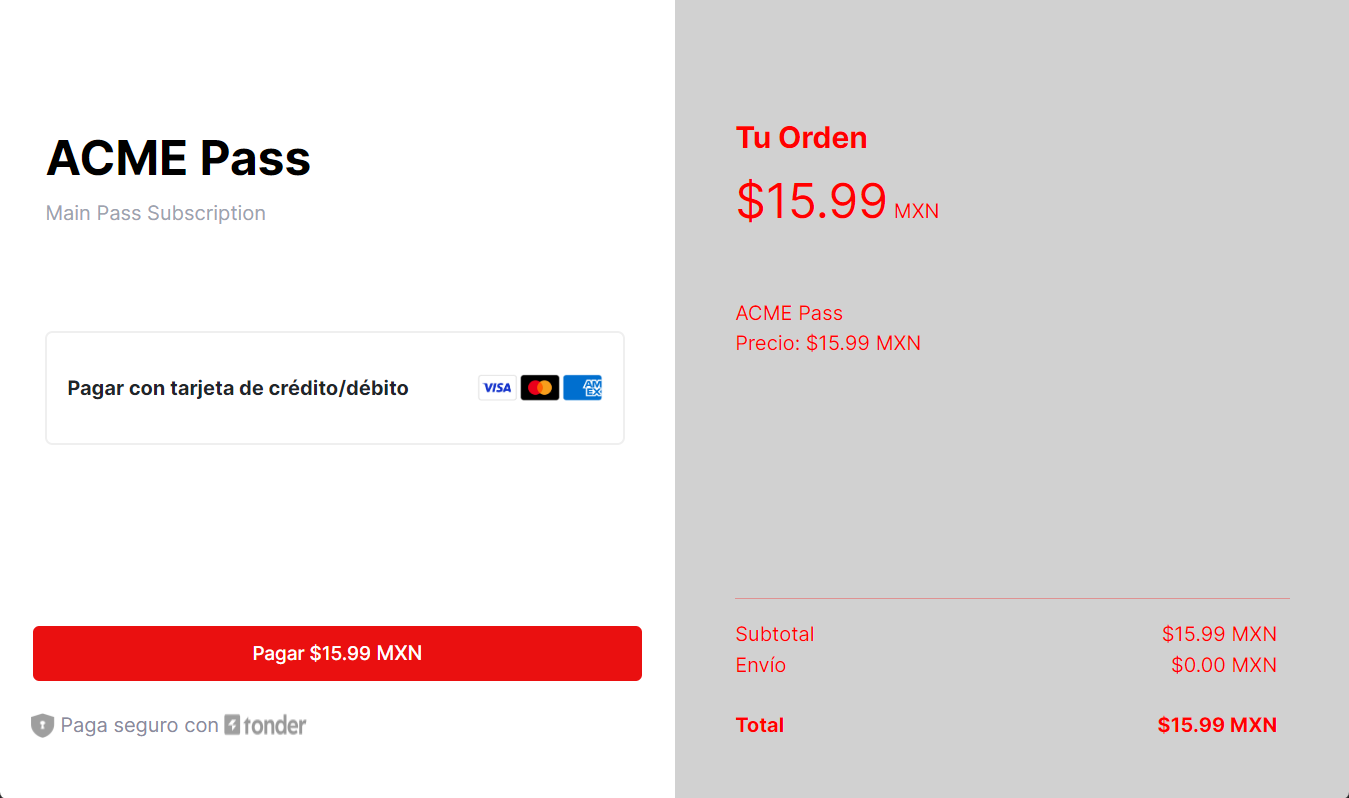
And now an example of executing payment for the created payment link using Tonder as the payment processor:
## Payment link details
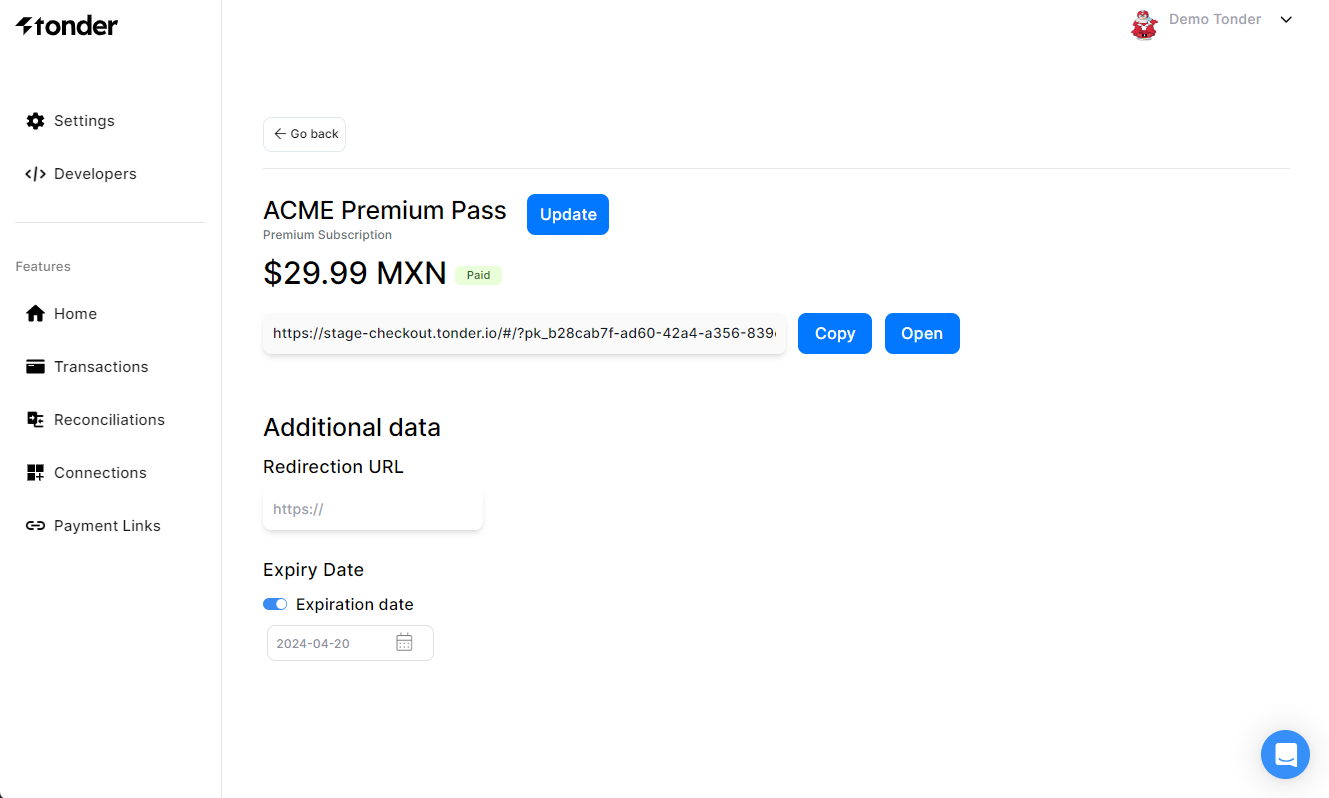
Each created payment link has its respective details page in the dashboard. You can copy or open the payment link's URL and edit the following additional data:
Add or change The URL to which users are redirected after payment completion.
Add, change, or remove the date when the payment link expires.
The image below exemplifies the details page of the link [created earlier in this guide](#creating):
## Payment link lifecycle
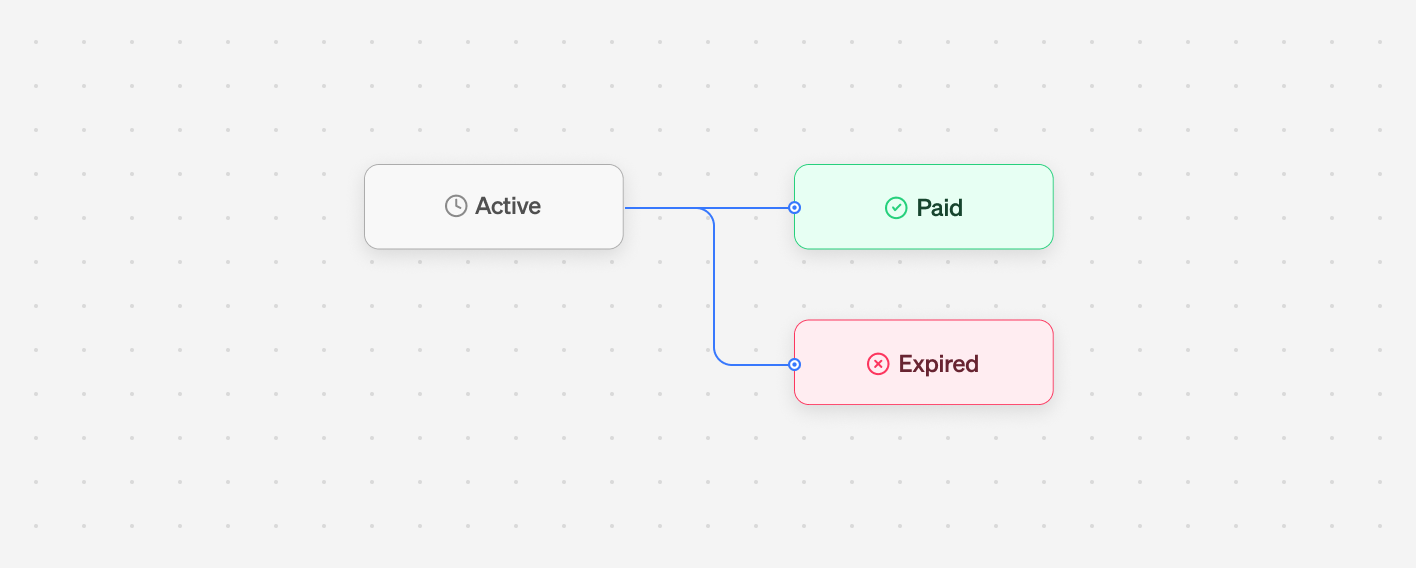
A payment link lifecycle in Tonder will go through the workflow presented below. At creation a payment link will always have a **Active** status. Changing to either **Paid**, or **Expired**, depending on the actions taken by the customer or the expiration settings configured during creation.
The table below presents the description for each possible status:
| Status | Description |
| ----------- | -------------------------------------------------------------------------------------------- |
| **Active** | The payment link is available and can be used by the customer to make a payment. |
| **Paid** | The payment has been successfully completed using the link. The link can no longer be used. |
| **Expired** | The payment link is no longer valid due to reaching the expiration time set during creation. |
## Branding
Tonder allows you to customize the checkout experience for your customers by adding your logo and brand colors to match your branding when they use one of your payment links.
This can be done by accessing the Branding page, through the Payment Links section. Click the **Branding** button at the top-right corner to be redirected there. The customizable options are:
| Field | Description |
| ---------------------- | ------------------------------------------------------ |
| Company Logo | Upload the logo representing the company or brand. |
| Checkout Color | The background color used in the checkout button. |
| Background Color | The background color of the order details. |
| Text in Checkout Color | The color of text elements within the checkout button. |
| Text in Orders Details | The color of text elements within the order details. |
Remember to **Save** your changes.
 ## Payment link lifecycle
A payment link lifecycle in Tonder will go through the workflow presented below. At creation a payment link will always have a **Active** status. Changing to either **Paid**, or **Expired**, depending on the actions taken by the customer or the expiration settings configured during creation.
## Payment link lifecycle
A payment link lifecycle in Tonder will go through the workflow presented below. At creation a payment link will always have a **Active** status. Changing to either **Paid**, or **Expired**, depending on the actions taken by the customer or the expiration settings configured during creation.
 The table below presents the description for each possible status:
| Status | Description |
| ----------- | -------------------------------------------------------------------------------------------- |
| **Active** | The payment link is available and can be used by the customer to make a payment. |
| **Paid** | The payment has been successfully completed using the link. The link can no longer be used. |
| **Expired** | The payment link is no longer valid due to reaching the expiration time set during creation. |
## Branding
Tonder allows you to customize the checkout experience for your customers by adding your logo and brand colors to match your branding when they use one of your payment links.
This can be done by accessing the Branding page, through the Payment Links section. Click the **Branding** button at the top-right corner to be redirected there. The customizable options are:
| Field | Description |
| ---------------------- | ------------------------------------------------------ |
| Company Logo | Upload the logo representing the company or brand. |
| Checkout Color | The background color used in the checkout button. |
| Background Color | The background color of the order details. |
| Text in Checkout Color | The color of text elements within the checkout button. |
| Text in Orders Details | The color of text elements within the order details. |
The table below presents the description for each possible status:
| Status | Description |
| ----------- | -------------------------------------------------------------------------------------------- |
| **Active** | The payment link is available and can be used by the customer to make a payment. |
| **Paid** | The payment has been successfully completed using the link. The link can no longer be used. |
| **Expired** | The payment link is no longer valid due to reaching the expiration time set during creation. |
## Branding
Tonder allows you to customize the checkout experience for your customers by adding your logo and brand colors to match your branding when they use one of your payment links.
This can be done by accessing the Branding page, through the Payment Links section. Click the **Branding** button at the top-right corner to be redirected there. The customizable options are:
| Field | Description |
| ---------------------- | ------------------------------------------------------ |
| Company Logo | Upload the logo representing the company or brand. |
| Checkout Color | The background color used in the checkout button. |
| Background Color | The background color of the order details. |
| Text in Checkout Color | The color of text elements within the checkout button. |
| Text in Orders Details | The color of text elements within the order details. |