> ## Documentation Index
> Fetch the complete documentation index at: https://docs.tonder.io/llms.txt
> Use this file to discover all available pages before exploring further.
# Finances
In Tonder's dashboard, inside the Finances section, you can manage all aspects of your financial transactions and balances. This page provides an overview of the Finances module.
Refer to the [Finances](/online-payments/finances) page of the Online Payments section to learn more about the financial concepts and their importance.
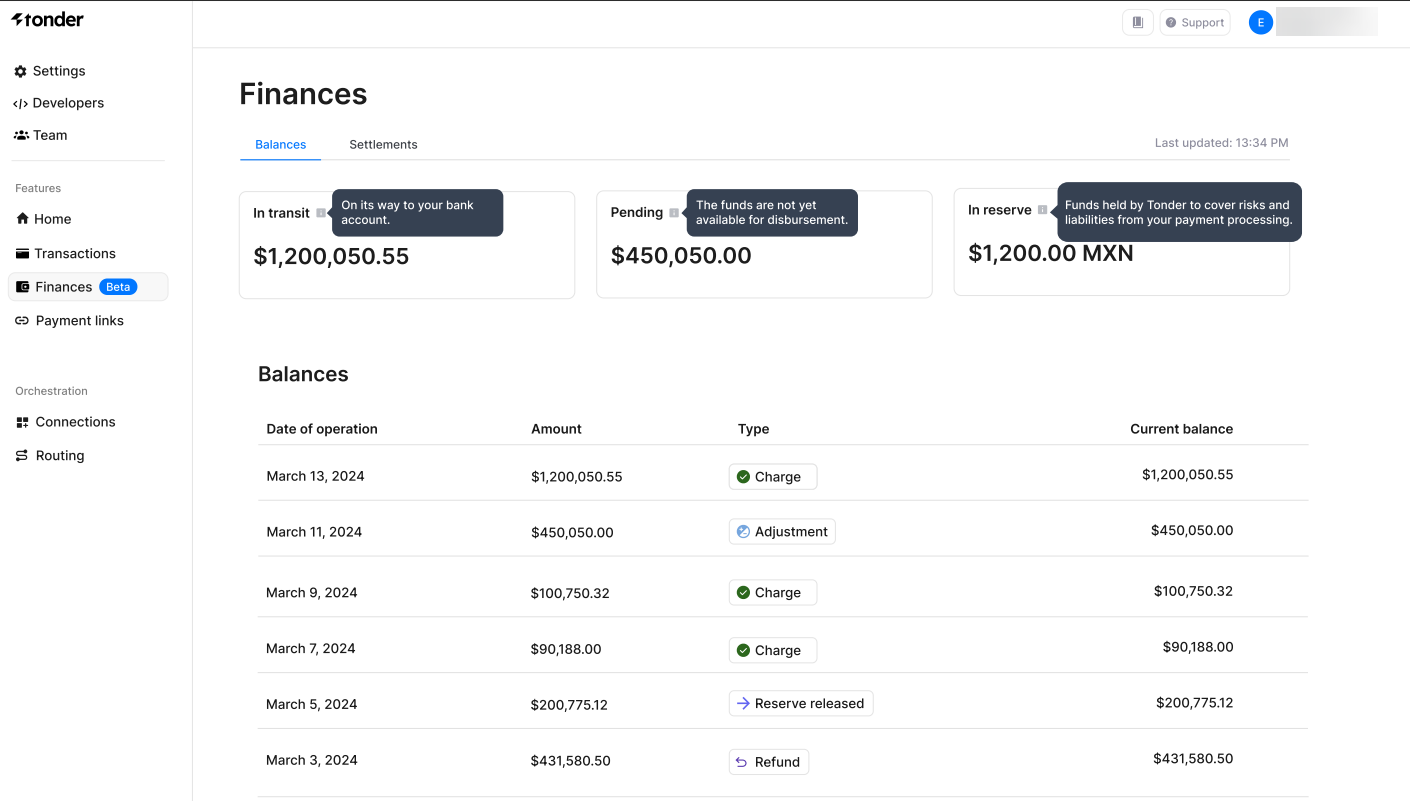 ## Finances overview
View an overview of your financial status, including balances and settlements. The overview includes the following information:
| Field | Description |
| ---------- | --------------------------------------------------------------------------- |
| In Transit | Funds that are on their way to your bank account but not yet available. |
| Pending | Funds that have not yet been cleared or made available for disbursement. |
| In Reserve | Funds held to cover potential risks and liabilities from your transactions. |
### Balances
The Balances section provides a detailed summary of your financial status, helping you keep track of your available funds. Here is what you will find:
| Field | Description |
| ----------------- | ---------------------------------------------------------------- |
| Date of Operation | The date when the financial transaction occurred. |
| Amount | The monetary value of the transaction. |
| Type | The nature of the transaction (e.g., charge, refund). |
| Current Balance | The total available funds in your account after the transaction. |
### Settlements
The Settlements section provides detailed information about your settlements. Here is what you will find:
| Field | Description |
| ------------------------ | ----------------------------------------------------------- |
| Amount | The monetary value of the settlement. |
| Status | The current status of the settlement (e.g., pending, paid). |
| Settlement ID | A unique identifier for the settlement. |
| Expected Settlement Date | The date when the settlement is expected to be completed. |
## Finances overview
View an overview of your financial status, including balances and settlements. The overview includes the following information:
| Field | Description |
| ---------- | --------------------------------------------------------------------------- |
| In Transit | Funds that are on their way to your bank account but not yet available. |
| Pending | Funds that have not yet been cleared or made available for disbursement. |
| In Reserve | Funds held to cover potential risks and liabilities from your transactions. |
### Balances
The Balances section provides a detailed summary of your financial status, helping you keep track of your available funds. Here is what you will find:
| Field | Description |
| ----------------- | ---------------------------------------------------------------- |
| Date of Operation | The date when the financial transaction occurred. |
| Amount | The monetary value of the transaction. |
| Type | The nature of the transaction (e.g., charge, refund). |
| Current Balance | The total available funds in your account after the transaction. |
### Settlements
The Settlements section provides detailed information about your settlements. Here is what you will find:
| Field | Description |
| ------------------------ | ----------------------------------------------------------- |
| Amount | The monetary value of the settlement. |
| Status | The current status of the settlement (e.g., pending, paid). |
| Settlement ID | A unique identifier for the settlement. |
| Expected Settlement Date | The date when the settlement is expected to be completed. |
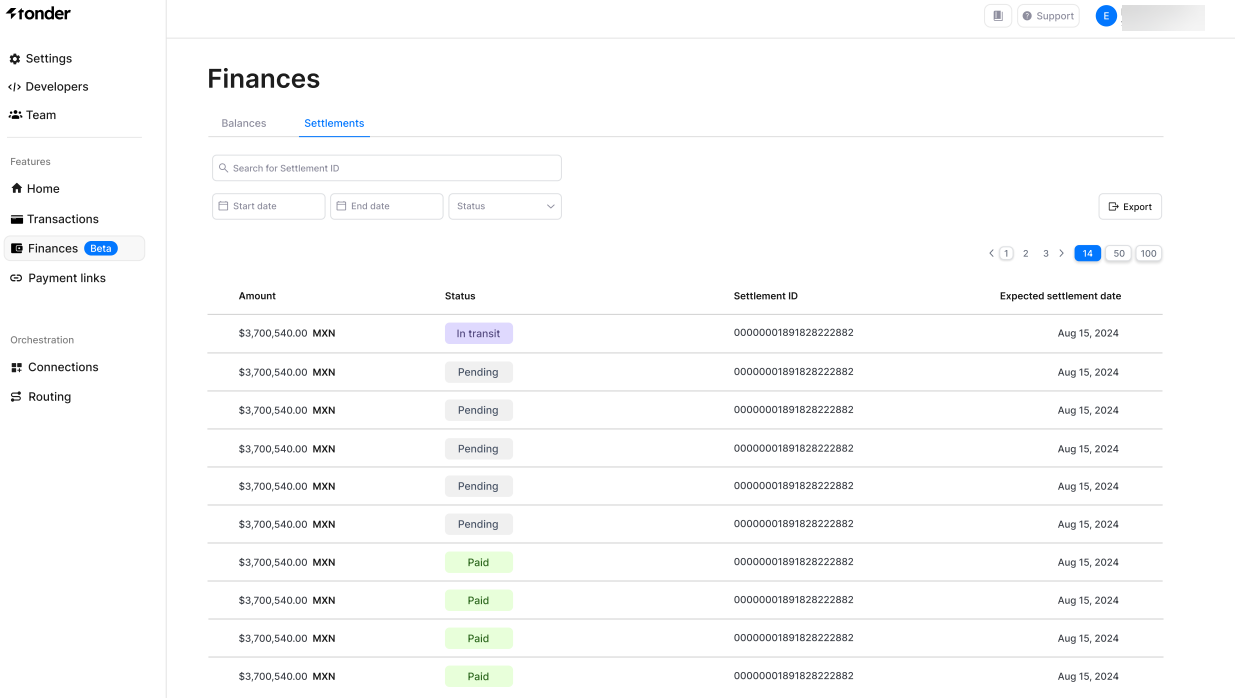 #### Efficient filtering
With the help of various filters, you can refine your settlements data according to your preferences. The table below presents the available filters:
| Filter | Description |
| ------------- | ---------------------------------------------------------------------------------------- |
| Settlement ID | Search for specific settlements using their unique Settlement ID. |
| Start Date | Focus on settlements that were created on or **after** a specific date. |
| End Date | Focus on settlements that were created on or **before** a specific date. |
| Status | Narrow down settlements based on their current status (e.g., pending, paid, in transit). |
### Data export
Export your settlement data with ease to a CSV file. This feature is perfect for sharing data with others or conducting in-depth analysis. To export, follow these quick steps:
1. Click **Export** on the top-right corner of the screen.
2. Select the **Filter date** timespan you wish to export.
3. Click **Export**.
## Settlement details
You can access details for each settlement by clicking on the respective settlement row. For more information on the details available in this section, refer to the [Settlement details page](./settlement-details) of the guides.
#### Efficient filtering
With the help of various filters, you can refine your settlements data according to your preferences. The table below presents the available filters:
| Filter | Description |
| ------------- | ---------------------------------------------------------------------------------------- |
| Settlement ID | Search for specific settlements using their unique Settlement ID. |
| Start Date | Focus on settlements that were created on or **after** a specific date. |
| End Date | Focus on settlements that were created on or **before** a specific date. |
| Status | Narrow down settlements based on their current status (e.g., pending, paid, in transit). |
### Data export
Export your settlement data with ease to a CSV file. This feature is perfect for sharing data with others or conducting in-depth analysis. To export, follow these quick steps:
1. Click **Export** on the top-right corner of the screen.
2. Select the **Filter date** timespan you wish to export.
3. Click **Export**.
## Settlement details
You can access details for each settlement by clicking on the respective settlement row. For more information on the details available in this section, refer to the [Settlement details page](./settlement-details) of the guides.