> ## Documentation Index
> Fetch the complete documentation index at: https://docs.tonder.io/llms.txt
> Use this file to discover all available pages before exploring further.
# Disputes
In Tonder's dashboard, inside the Transactions section, you can find the Disputes tab. This is where you will manage all disputes related to your transactions.
Refer to the [Disputes](/online-payments/disputes) page of the Online Payments section to learn more about disputes.
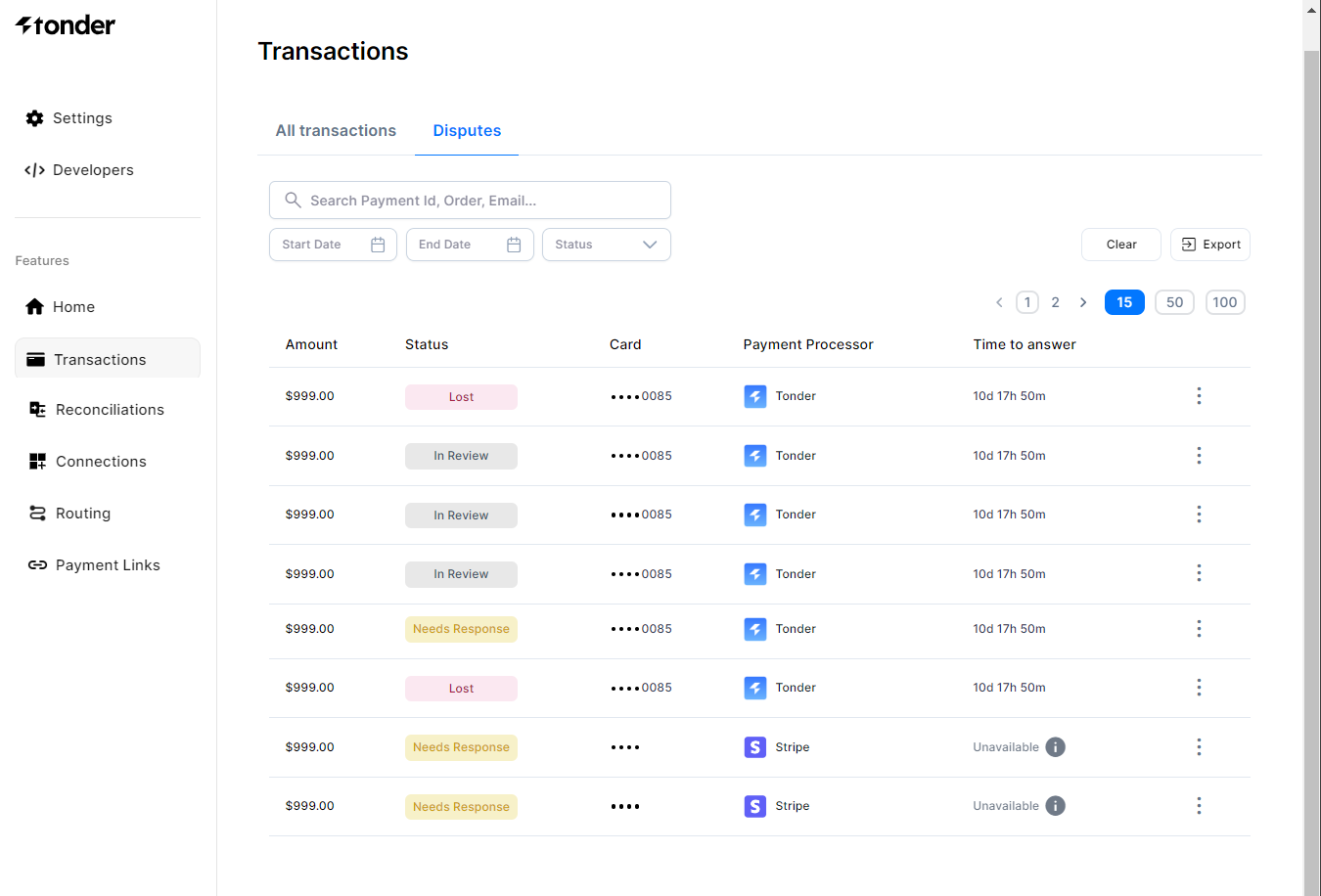 ## Disputes overview
View an overview of all your disputes regardless of their status. The overview includes the following information:
| Field | Description |
| ----------------- | ----------------------------------------------------------- |
| Amount | The monetary value of the disputed transaction. |
| Status | The current status of the dispute (e.g., open, closed). |
| Card | The card used for the transaction being disputed. |
| Payment Processor | The payment processing company involved in the transaction. |
| Time to answer | The available time to respond to the dispute. |
**Time to answer** is only available if the payment processor of the transaction is Tonder.
## Efficient filtering
With the help of various filters, you can refine your search results according to your preferences. The table below presents you the available filters:
| Filter | Description |
| ------ | --------------------------------------------------------- |
| Status | Narrow down disputes based on their current status. |
| Date | Focus on disputes created within a particular date range. |
## Data export
Export your payment and transaction data with ease to a CSV file. This feature is perfect for sharing data with others or conducting in-depth analysis. To export follow these quick steps:
1. Click **Export** on the top-right corner of the screen.
2. Select the **Filter date** timespan you wish to export.
3. Click **Export**.
## Dispute details
You can access details for each dispute by clicking on the each dispute row. To find which details you find in this page, refer to the [Dispute details page](./dispute-details) of the guides.
## Disputes overview
View an overview of all your disputes regardless of their status. The overview includes the following information:
| Field | Description |
| ----------------- | ----------------------------------------------------------- |
| Amount | The monetary value of the disputed transaction. |
| Status | The current status of the dispute (e.g., open, closed). |
| Card | The card used for the transaction being disputed. |
| Payment Processor | The payment processing company involved in the transaction. |
| Time to answer | The available time to respond to the dispute. |
**Time to answer** is only available if the payment processor of the transaction is Tonder.
## Efficient filtering
With the help of various filters, you can refine your search results according to your preferences. The table below presents you the available filters:
| Filter | Description |
| ------ | --------------------------------------------------------- |
| Status | Narrow down disputes based on their current status. |
| Date | Focus on disputes created within a particular date range. |
## Data export
Export your payment and transaction data with ease to a CSV file. This feature is perfect for sharing data with others or conducting in-depth analysis. To export follow these quick steps:
1. Click **Export** on the top-right corner of the screen.
2. Select the **Filter date** timespan you wish to export.
3. Click **Export**.
## Dispute details
You can access details for each dispute by clicking on the each dispute row. To find which details you find in this page, refer to the [Dispute details page](./dispute-details) of the guides.